

Sub Collection
The sub collection automatically displays sublists, enhancing user experience by enabling easy navigation and access to specific data subsets. It streamlines data exploration, making it more efficient and organized for users.
To setup Sub Collection , please follow these steps:
To create metafields for Sub Collection, please follow this article.
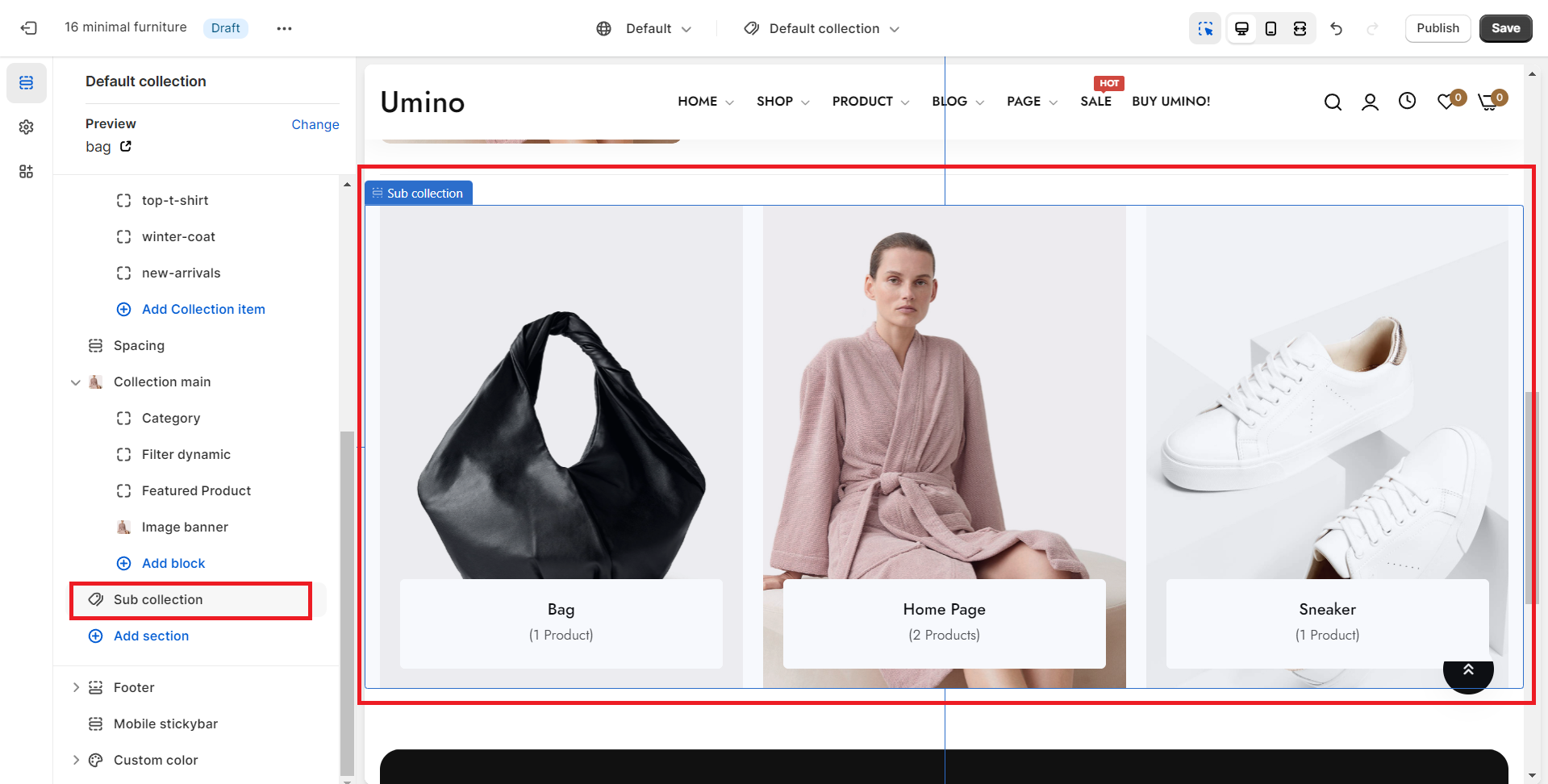
Sub Collection settings
1. Section header and general:
Use the provided text fields to add a suitable heading/subheading/description. Leave any of them blank if you do not want to display them.
Adjust the text alignment (left/center) along with the background color and container type.
.png)
You can choose your container type for the collection list as:
- Default
- Fluid container
- Full width
.png)
2.COLLECTION SETTINGS
Collection types: Grid, Carousel
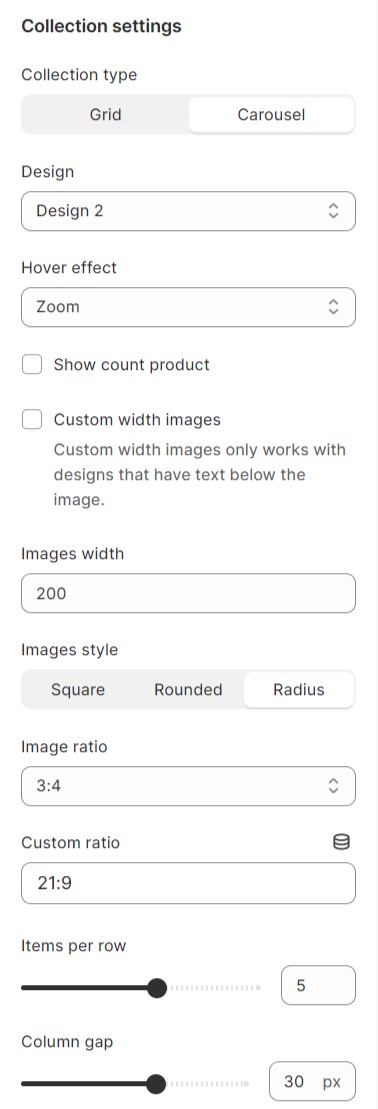
Designs
.png)
.png)
.png)
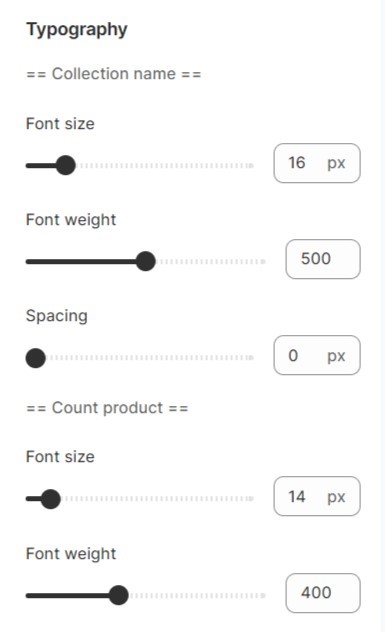
Typography
Elements related to the font such as spacing, height, weight, etc. are adjustable.
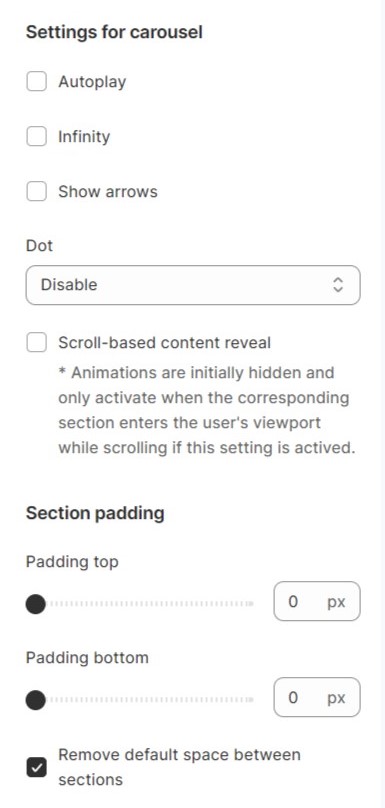
Carousel settings
- Select Auto slide option to run the list automatically
- Select Infinity option to make the list act like a circle
- Select Show arrows option to enable To left - To right buttons
No comments yet