
- Video
- Slideshow
- Instagram shop
- Banner image
- Banner with text
- Blog posts
- Collection list
- Collection packery
- Custom content
- Collection Link
- Scrolling text
- Divider
- Faq
- Google map
- Image box
- Lookbook
- Newsletter
- Product single
- Products carousel
- Collection tab
- Custom HTML
- Products deal
- Products grid
- Products list
- Products list carousel
- Products recently viewed
- Testimonials
- Tiktok video
- Shop the Look
- Spacing
- Age verifier popup
- Animation
- Counter
- Shopable video
Gallery

Written by ThuHuong_FE_NextSky
Last updated
A guide to set up a collection list
Create your online store today with Shopify
The collection list displays a quick list of desired collections to catch visitors' attention.
Steps
In the theme editor (Customize), click Add section
Locate Gallery
Save
Gallery settings
1. Section header and general:
Use the provided text fields to add a suitable heading/subheading/description. Leave any of them blank if you do not want to display them.
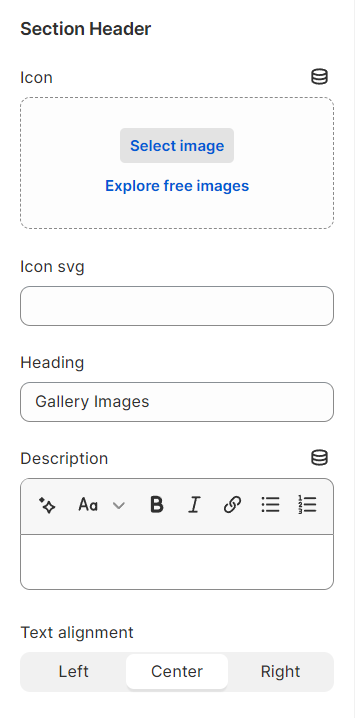
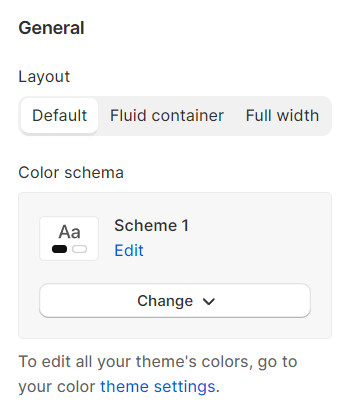
Layout: You can choose between Container, Wrapped container, Full width for the banner layout.
Color schema: You are allowed to change text color, background color with preset color.
2. Gallery settings
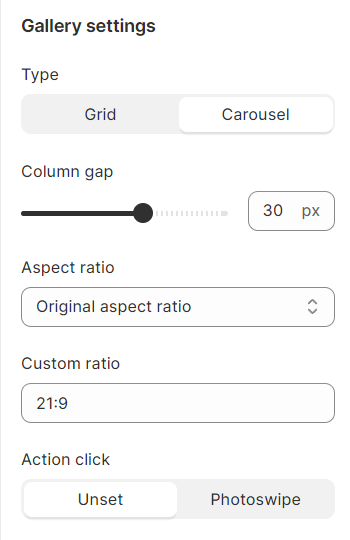
Type of the gallery can be selected between Grid and Carousel.
Column gap refers to the space between two images.
The Aspect ratio can be configured using preset options or customized according to your preferences.
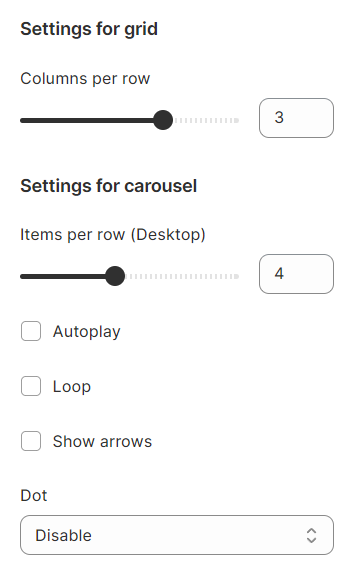
3. Grid and Carousel settings
Determine the number of columns per row for the grid and the number of items per row for the carousel. Additionally, you can enable autoplay, looping, and include arrow buttons for navigating forward or backward through the slides in the carousel.
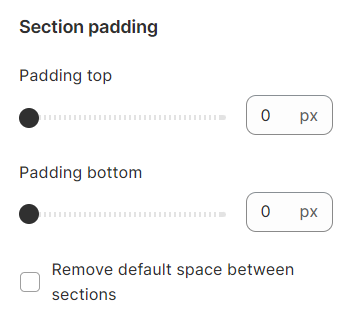
4. Section padding
Section padding allows you to specify the space between the slideshow and the preceding or following sections, or both.
5. Gallery content settings