

- Edit Product Page
- Breadcrumb
- Product Sidebar
- Left Sidebar
- Right sidebar
- Drawer sidebar
- Product Thumbnails Position
- Thumbnails Left
- Thumbnails Right
- Thumbnails bottom
- No Thumbnails
- Grid 1 column
- Grid 2 column
- Inner zoom 1
- Inner zoom 2
- External zoom
- Product summary
- General Option
- Product title
- Short description
- Product Review and Sold
- Product price
- Visitors counter
- Product custom field
- Custom HTML
- Product meta
- Trust badge
- Delivery and Return and Pickup availability
- Product form
- Stock countdown
- Product addons
- Show compare color
- Show Ask a Question
- Show share
- Product swatch
- Product label
- Custom TEXT
- Guarantee safe checkout
- Custom liquid
- More Products Color
- Countdown timer
- Product vendor logo
- Subscriptions
- Tab Review
- Tab Custom
- Setup Frequently Bought Together
- Variant Image Grouped
- Setup Stock notification form
- Setup Product group
- Products recently viewed
- Product recommendations
- Product information tabs
- Tab Description
- Product Description
- Layout 3
- Layout 2
- Layout 1
Size chart

Written by ThuHuong_FE_NextSky
Last updated
Setup metafield for Size chart
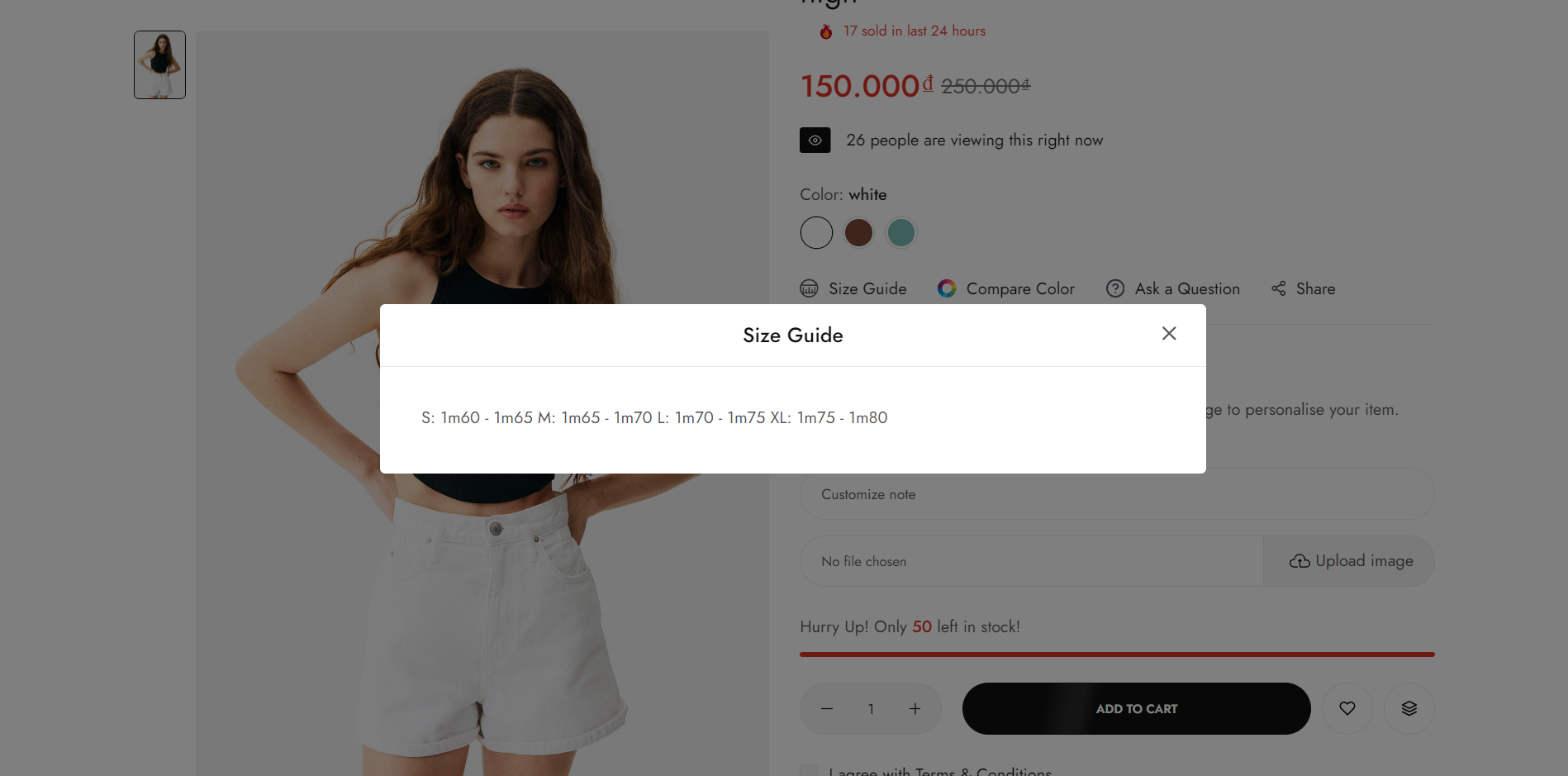
1. Create Size chart metafield
Step:
Login to your Shopify store, click to Settings
Click to Custom data and select Products
Add Metafield for Size chart
Name: Size chart
Namespace and key: bls.size_chart
Content type: Multi-line text
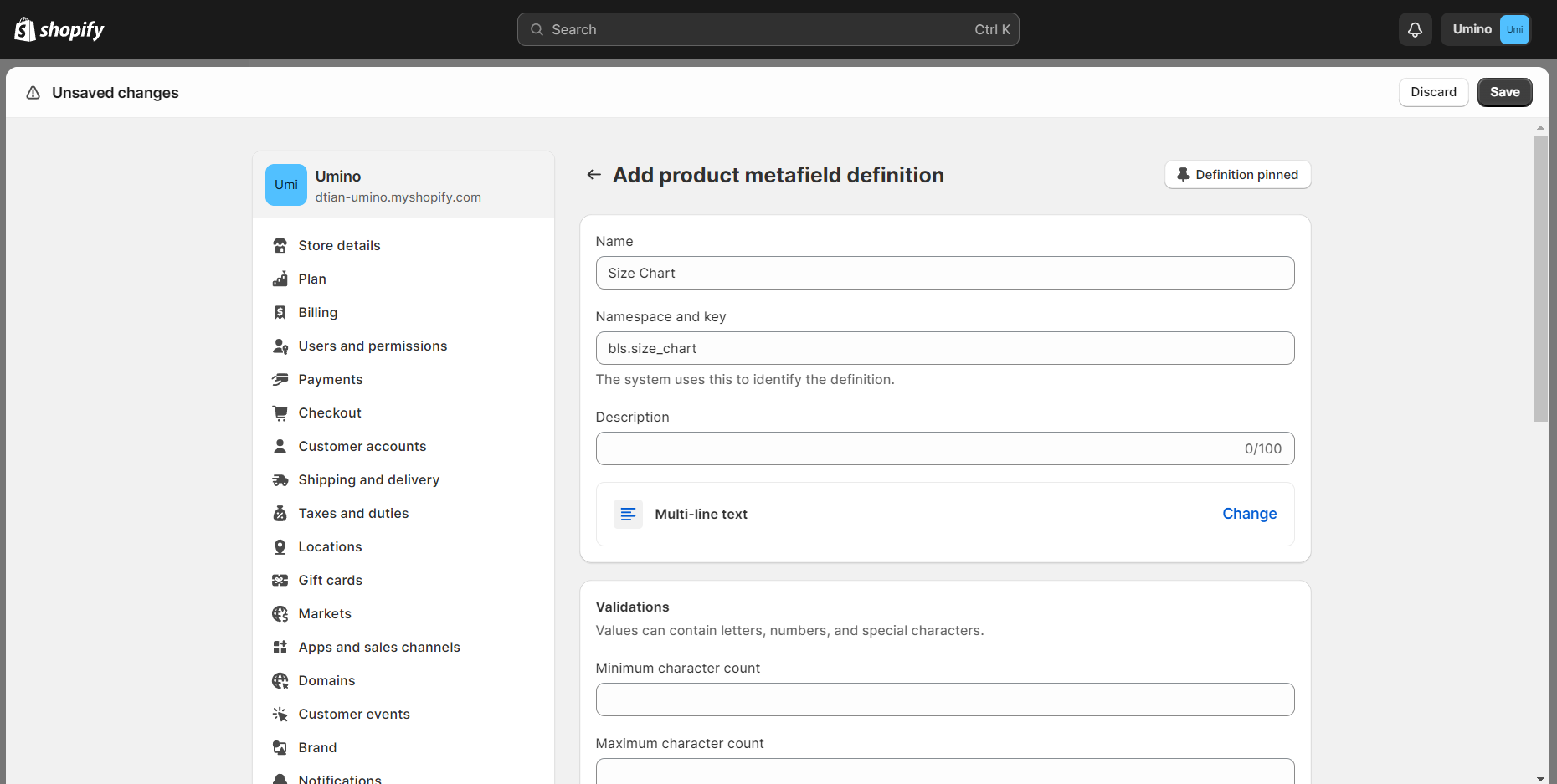
2. Add Size chart metafield to products
To set up a size chart metafield on Shopify admin, select a product from the Products section and customize the metafield according to your desired specifications.
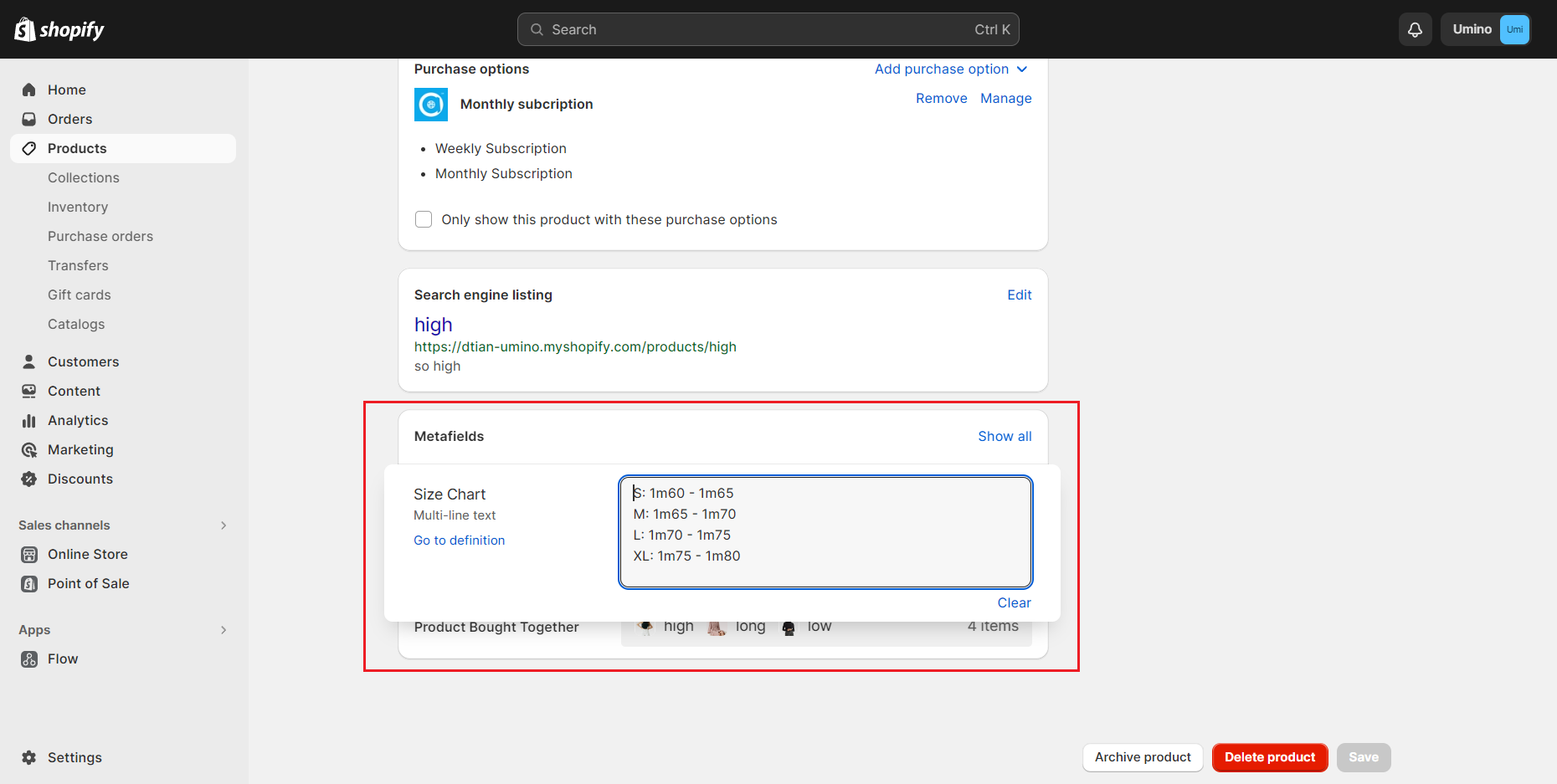
Size chart settings
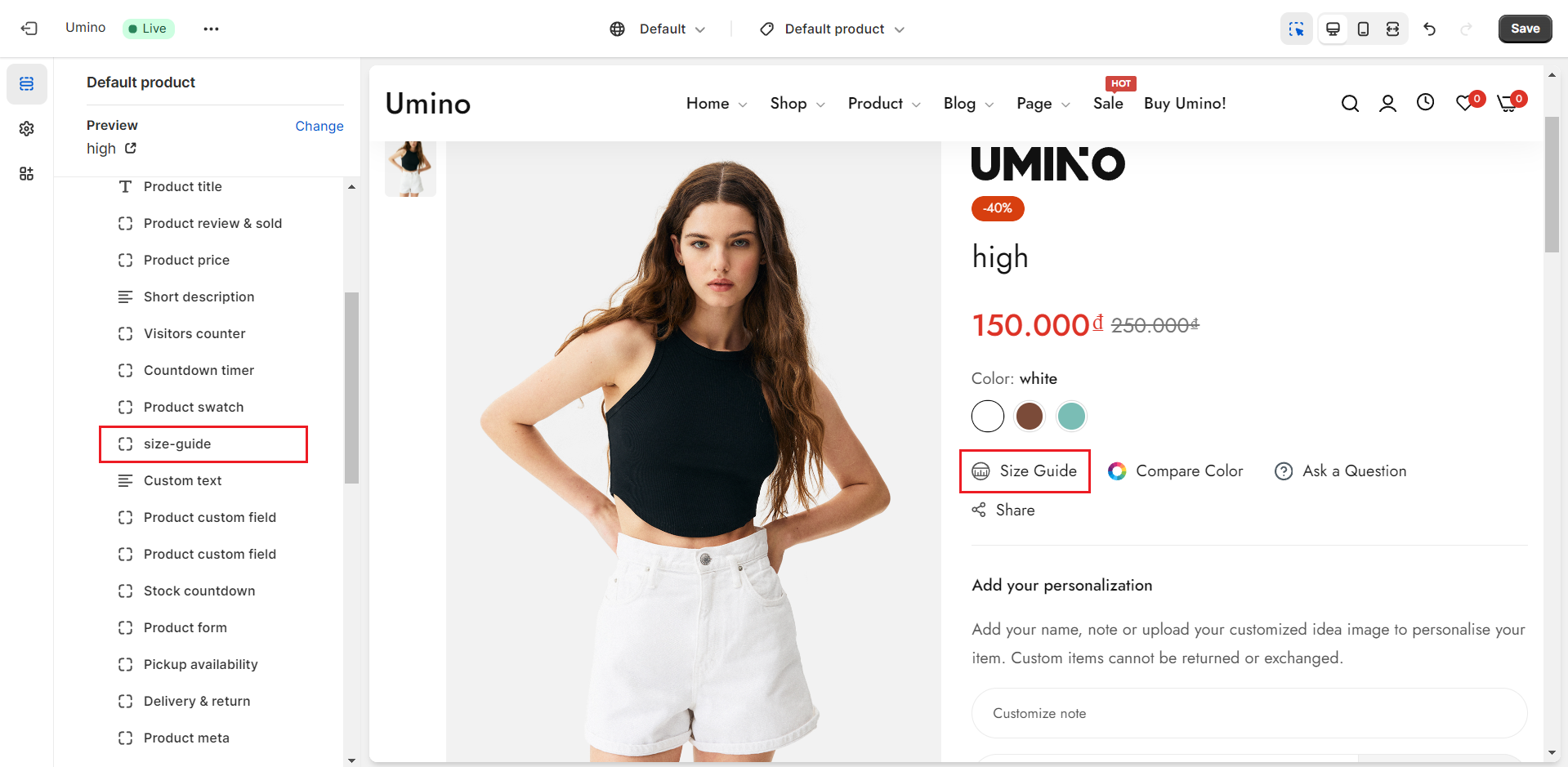
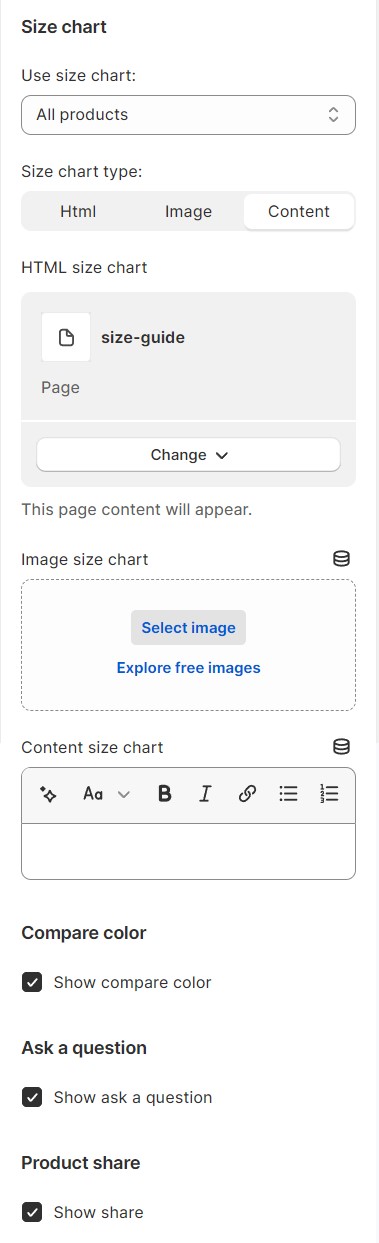
Use Size chart: There are three options for you: None, All Products and Product has size
Size Chart Type: There are three types for you to choose: Image or HTML or Content.
HTML Size Chart: This option allows you to choose a page that you created in Shopify backend
Image Size Chart: This option allows you to upload an image for the size chart option.
Content Size Chart: This option allows you to add size guide content here
Html code
<h4 class="fs-18">Sizes for this Product.</h4>
<p class="mb-20">This is an approximate conversion table to help you find your size. Measure around the fullest part, place the tape close under the arms and make sure the tape is flat across the back (Unit: centimeter).</p>
<div class="table-responsive mb-20" style="overflow-y: auto;">
<table class="sizeguide_table" style="margin-left: auto; margin-right: auto; font-size: 14px;" width="100%">
<thead>
<tr>
<th class="fw-500 heading-color">Size</th>
<th class="fw-500 heading-color">US</th>
<th class="fw-500 heading-color">Bust</th>
<th class="fw-500 heading-color">Body Waist</th>
<th class="fw-500 heading-color">Fullest Hip</th>
</tr>
</thead>
<tbody>
<tr>
<td>XS</td>
<td>2</td>
<td>32</td>
<td>24 - 25</td>
<td>33 - 34</td>
</tr>
<tr>
<td>S</td>
<td>4</td>
<td>34 - 35</td>
<td>26 - 27</td>
<td>35 - 36</td>
</tr>
<tr>
<td>M</td>
<td>6</td>
<td>36 - 37</td>
<td>28 - 29</td>
<td>37 - 38</td>
</tr>
<tr>
<td>L</td>
<td>8</td>
<td>38 - 39</td>
<td>30 - 31</td>
<td>39 - 40</td>
</tr>
<tr>
<td>XL</td>
<td>10</td>
<td>40 - 42</td>
<td>32 - 33</td>
<td>41 - 42</td>
</tr>
<tr>
<td>XXL</td>
<td>12</td>
<td>40 - 41</td>
<td>34 - 3</td>
<td>43 - 44</td>
</tr>
</tbody>
</table>
</div>
<div class="row align-items-center">
<div class="col-md-7">
<h4 class="fs-18">How to Measure.</h4>
<h5 class="mb-5 fs-16">1. Bust</h5>
<p>Measure at the fullest part of your chest, keeping the tape parallel to the floor.</p>
<h5 class="mb-5 fs-16">2. Body Waist</h5>
<p>Measure at the smallest part of your waist. This is usually below the rib cage and above the hip bone.</p>
<h5 class="mb-5 fs-16">3. Fullest Hip</h5>
<p class="m-0">Measure at the fullest part of your seat, keeping the tape parallel to the floor.</p>
</div>
<div class="col-md-5"><img src="https://cdn.shopify.com/s/files/1/0665/6580/0183/files/size-g_600x600.jpg?v=1667383798" alt="size-g"></div>
</div>