
- Edit Product Page
- Breadcrumb
- Product Sidebar
- Left Sidebar
- Right sidebar
- Drawer sidebar
- Product Thumbnails Position
- Thumbnails Left
- Thumbnails Right
- Thumbnails bottom
- No Thumbnails
- Grid 1 column
- Grid 2 column
- Inner zoom 1
- Inner zoom 2
- External zoom
- Product summary
- General Option
- Product title
- Short description
- Product Review and Sold
- Product price
- Visitors counter
- Product custom field
- Custom HTML
- Product meta
- Trust badge
- Delivery and Return and Pickup availability
- Product form
- Stock countdown
- Product addons
- Size chart
- Show compare color
- Show Ask a Question
- Show share
- Product swatch
- Product label
- Custom TEXT
- Guarantee safe checkout
- Custom liquid
- More Products Color
- Countdown timer
- Product vendor logo
- Subscriptions
- Tab Review
- Tab Custom
- Setup Frequently Bought Together
- Setup Stock notification form
- Setup Product group
- Products recently viewed
- Product recommendations
- Product information tabs
- Tab Description
- Product Description
- Layout 3
- Layout 2
- Layout 1
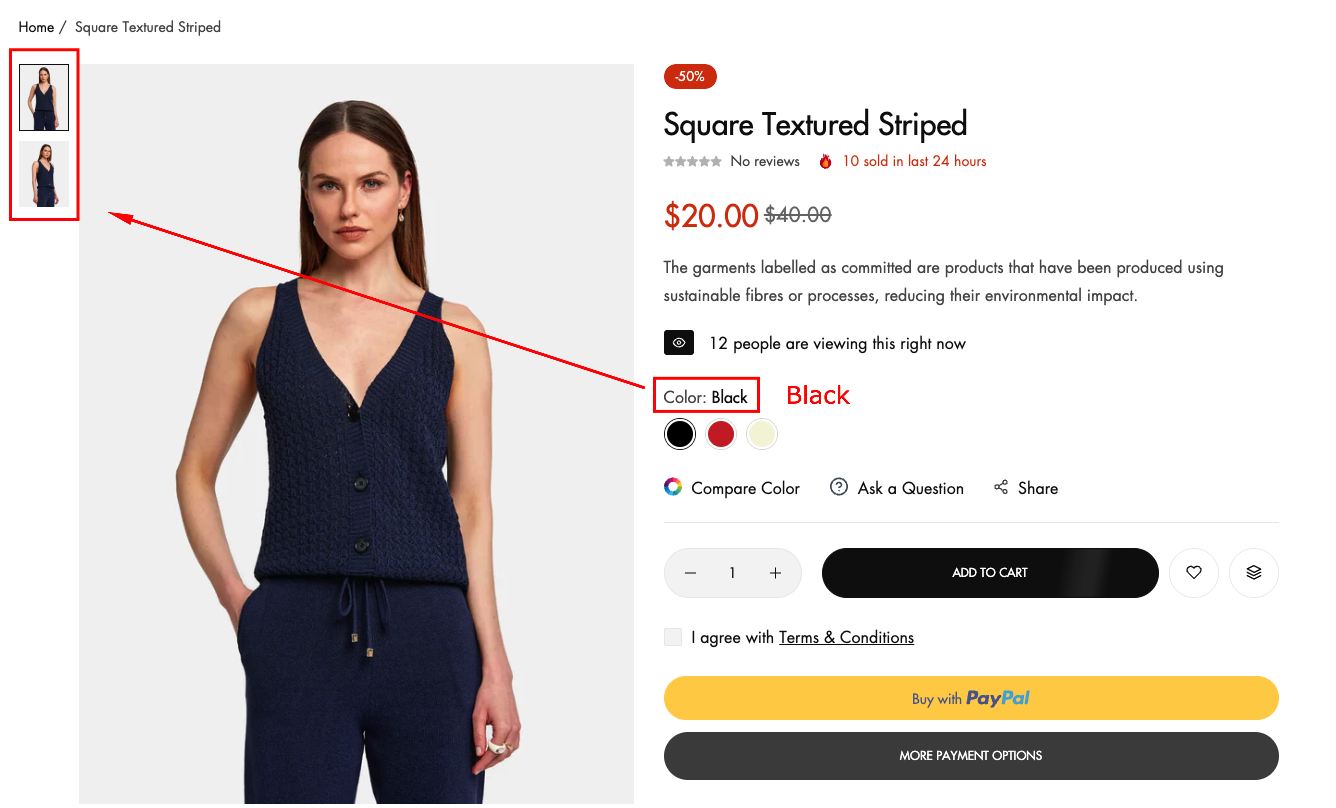
Variant Image Grouped

Written by ThuHuong_FE_NextSky
Last updated
Below are the step-by-step instructions to set up Variant Image Grouped:
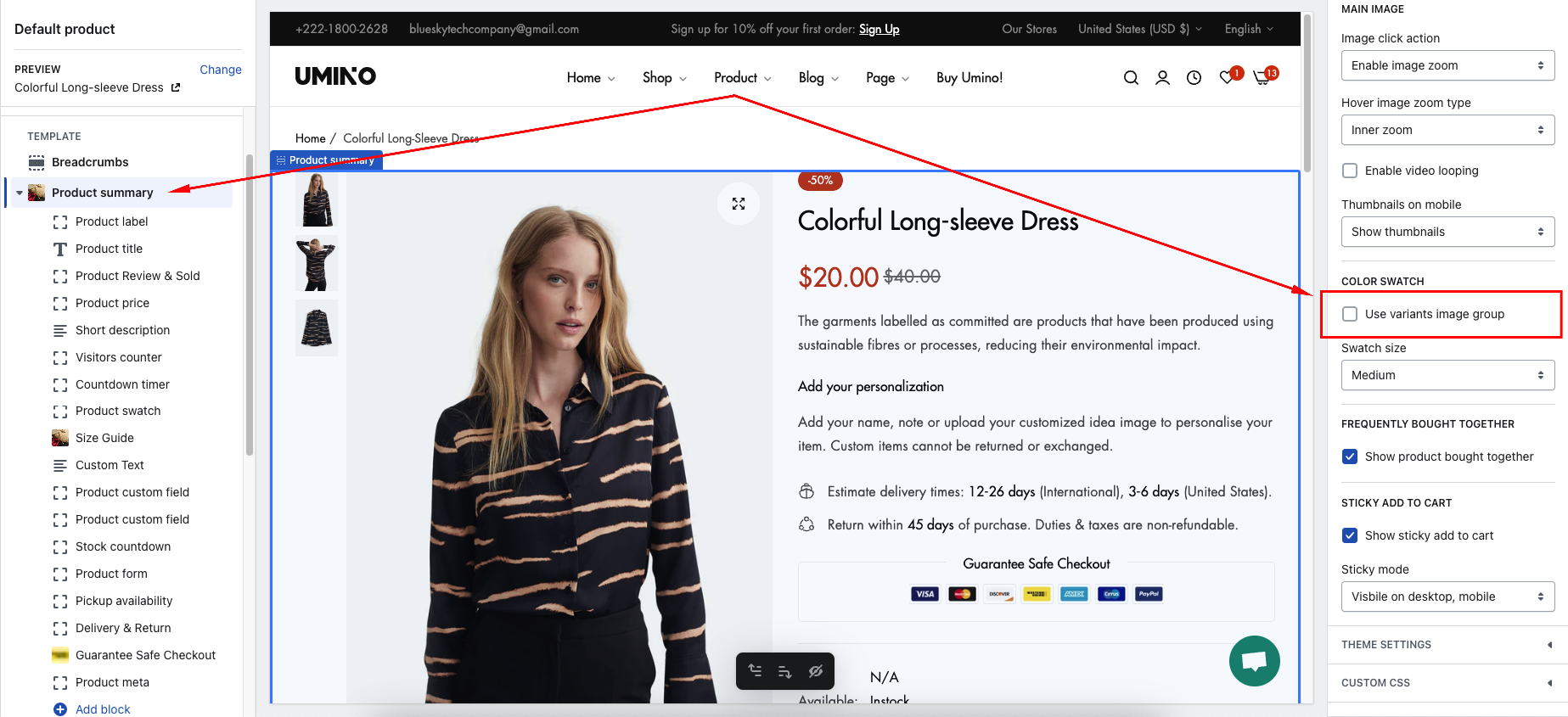
Step 1: In Theme customize, go to the Product page > Default product > Product summary, you guys will see the Use variants image group option here:
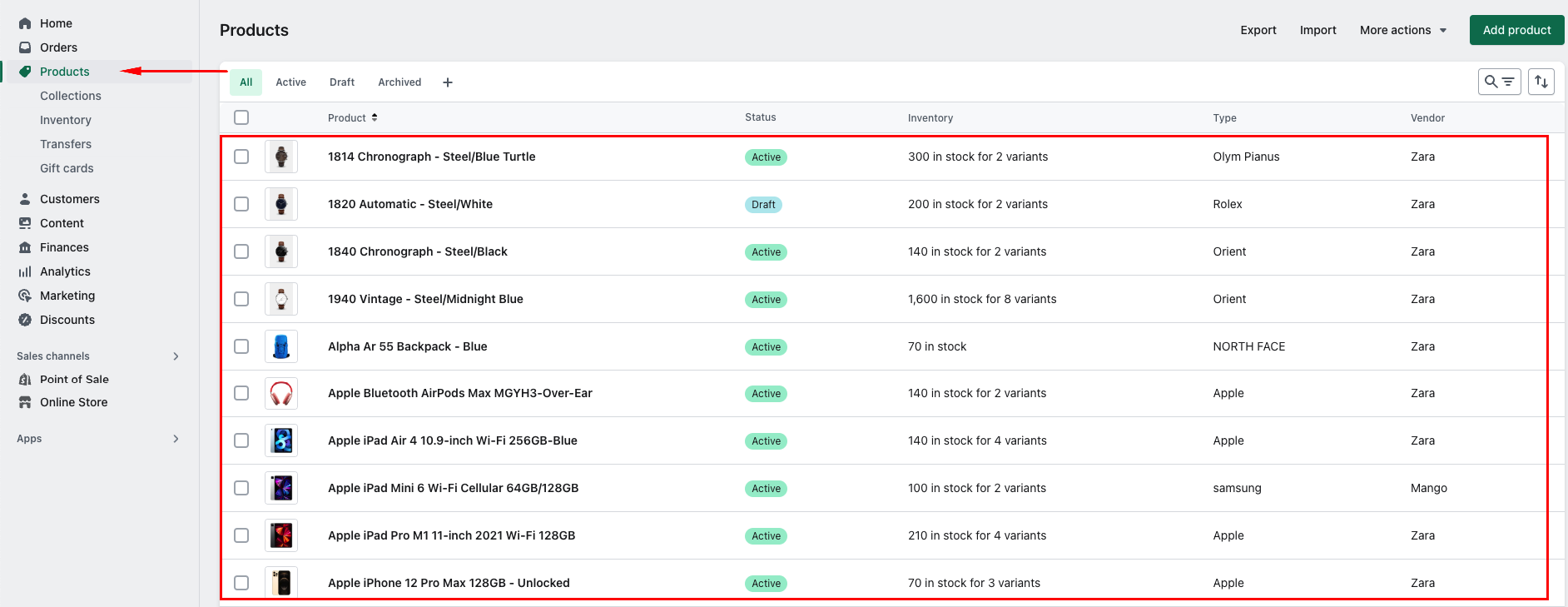
Step2: Go to Products select product you would like to add Variant Image Grouped
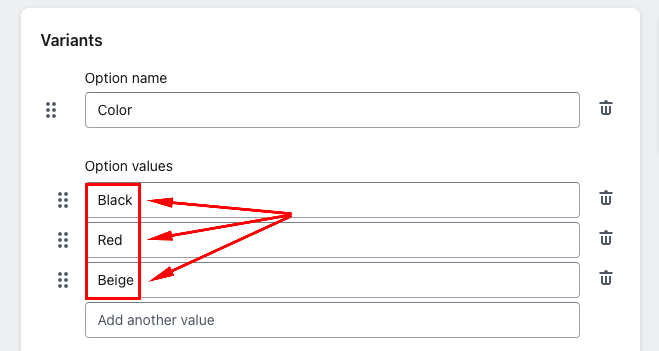
Step3: Copy the colors of Variant section
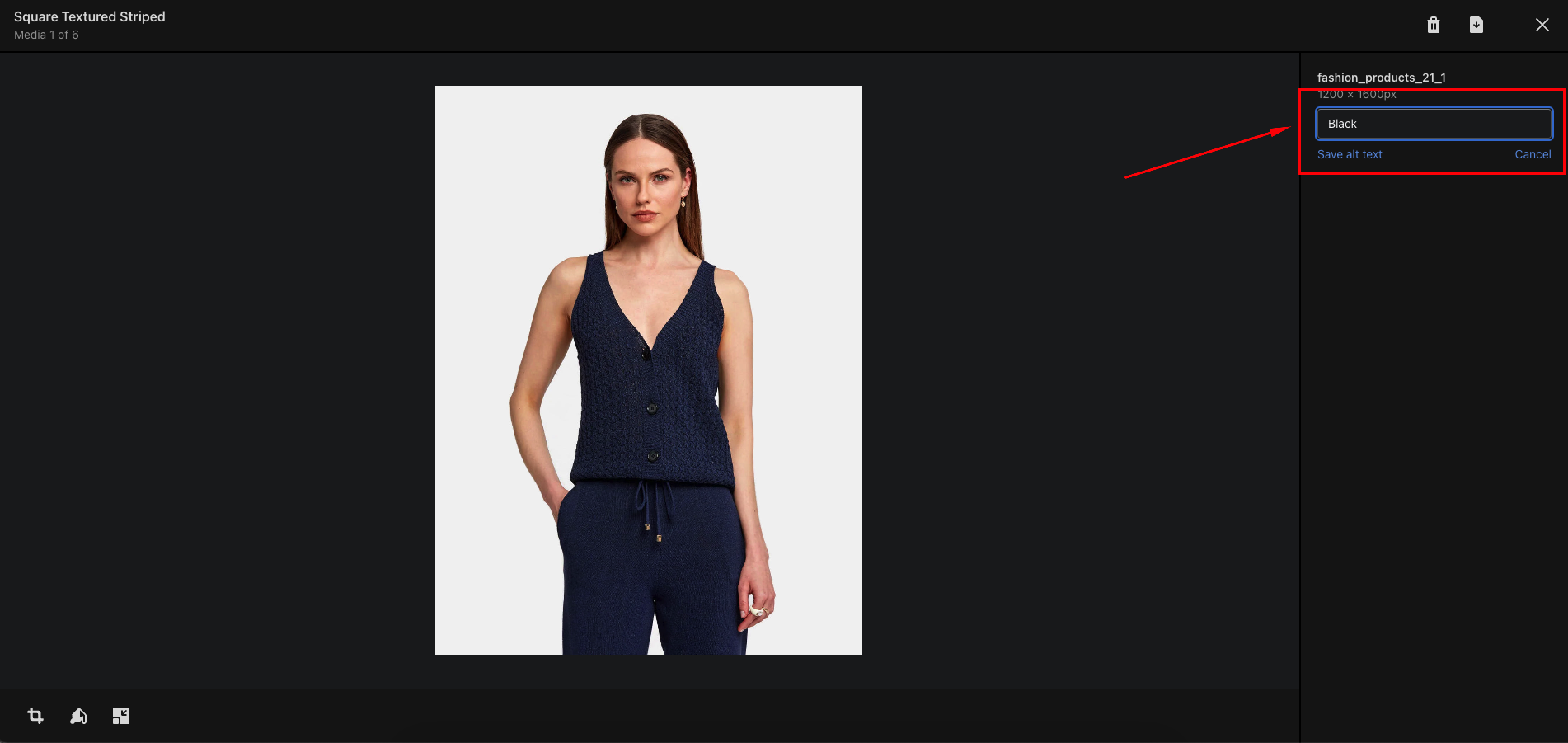
Step 4: Click on image product -> Paste name of the variant color on “Image alt text” section of a product image.
Here is the result: Demo