
- Edit Product Page
- Breadcrumb
- Product Sidebar
- Left Sidebar
- Right sidebar
- Drawer sidebar
- Product Thumbnails Position
- Thumbnails Left
- Thumbnails Right
- Thumbnails bottom
- No Thumbnails
- Grid 1 column
- Grid 2 column
- Inner zoom 1
- Inner zoom 2
- External zoom
- Product summary
- General Option
- Product title
- Short description
- Product Review and Sold
- Product price
- Visitors counter
- Product custom field
- Custom HTML
- Product meta
- Trust badge
- Delivery and Return and Pickup availability
- Product form
- Stock countdown
- Product addons
- Size chart
- Show compare color
- Show Ask a Question
- Show share
- Product swatch
- Product label
- Custom TEXT
- Guarantee safe checkout
- Custom liquid
- More Products Color
- Countdown timer
- Product vendor logo
- Subscriptions
- Tab Review
- Tab Custom
- Setup Frequently Bought Together
- Variant Image Grouped
- Setup Stock notification form
- Setup Product group
- Product recommendations
- Product information tabs
- Tab Description
- Product Description
- Layout 3
- Layout 2
- Layout 1
Products recently viewed

Written by ThuHuong_FE_NextSky
Last updated
Display a list of recently view products as a reminder and prompts customer to purchase
Create your online store today with Shopify
Steps
In the theme editor (Customize), open the template selector
Select Products, then Default product.
On the left-sidebar, add Products recently viewed.
Make necessary changes > Save.
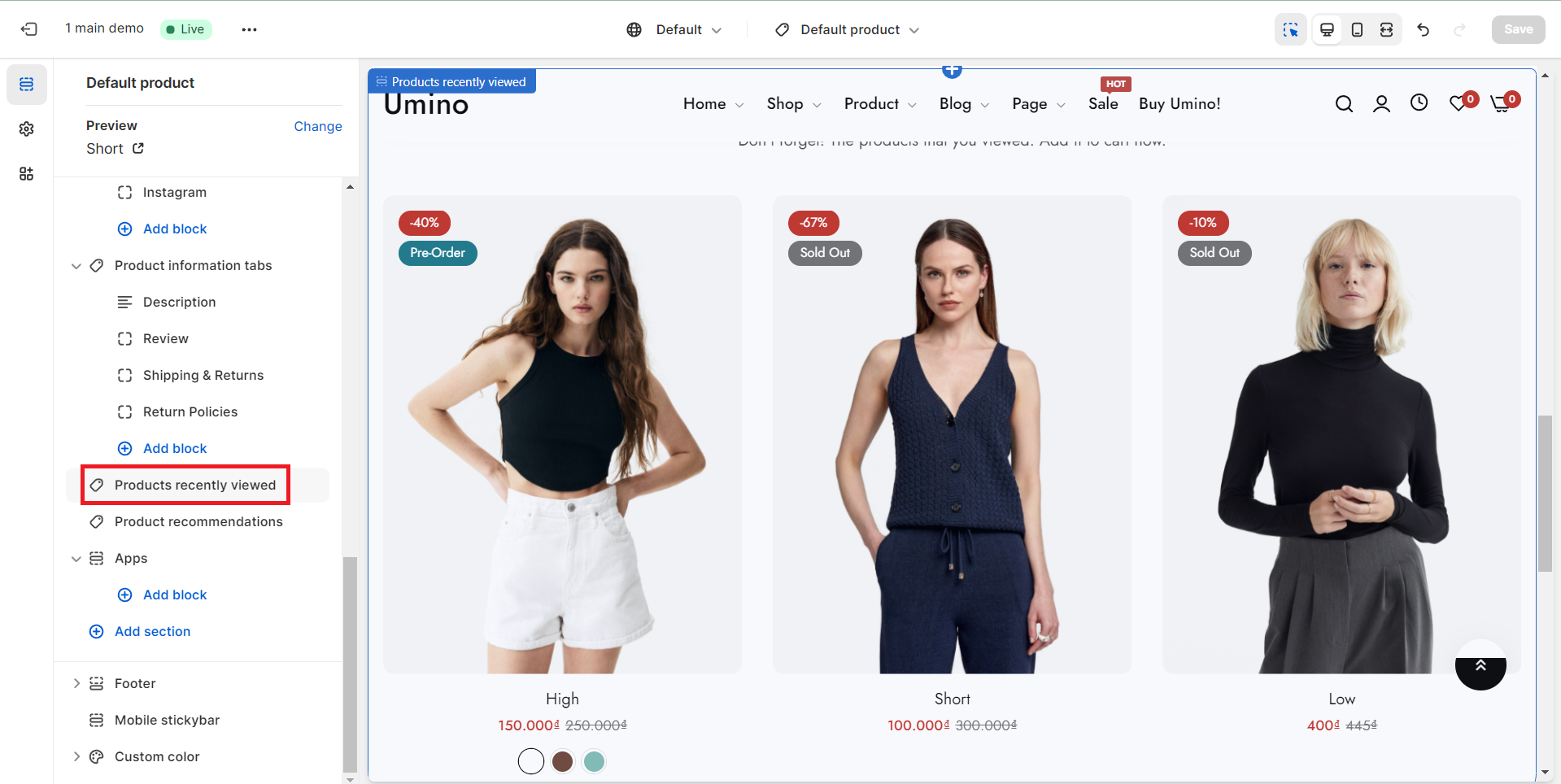
1. Section header and general
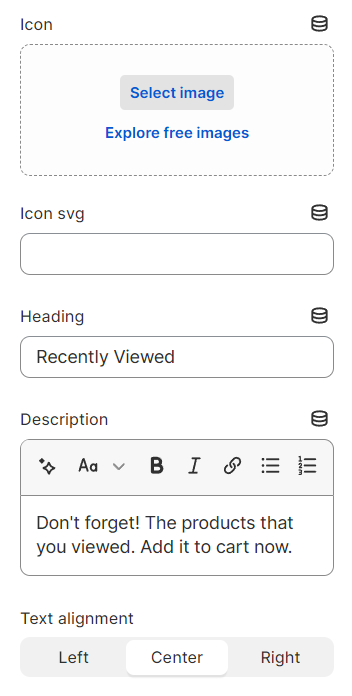
Use the provided text fields to add a suitable heading/description. Leave any of them blank if you do not want to display them.
Adjust the text alignment (left/center/right) along with the background color and container type.
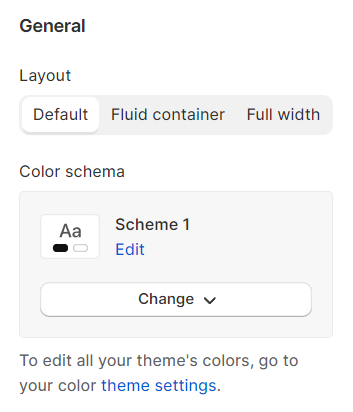
You can choose your Layout type for the collection list as:
Default
Fluid container
Full width
Color schema: You are allowed to change text color, background color with preset color.
2.Products List Setting
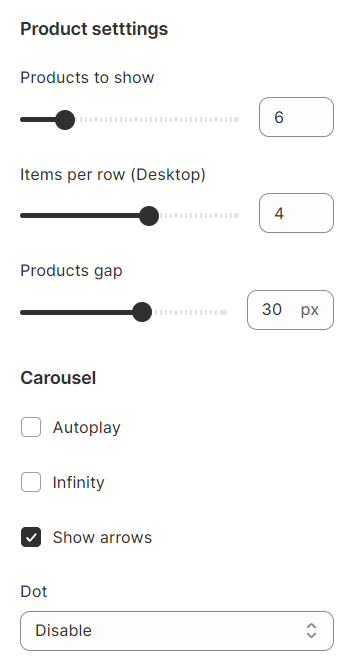
Products per row (between 1 and 4), and the column gap (between 0 and 50)
Select Autoplay option to run the list automatically.
You can also use pagination or navigation.
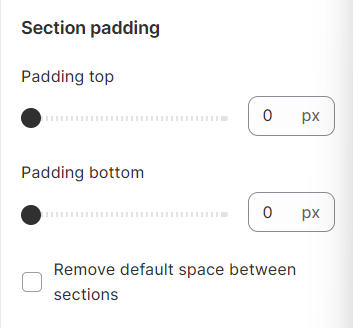
3. Section padding
Section padding allows you to specify the space between the slideshow and the preceding or following sections, or both.