
- Edit Product Page
- Breadcrumb
- Product Sidebar
- Left Sidebar
- Right sidebar
- Drawer sidebar
- Product Thumbnails Position
- Thumbnails Left
- Thumbnails Right
- Thumbnails bottom
- No Thumbnails
- Grid 1 column
- Grid 2 column
- Inner zoom 1
- Inner zoom 2
- External zoom
- Product summary
- General Option
- Product title
- Short description
- Product Review and Sold
- Product price
- Visitors counter
- Product custom field
- Custom HTML
- Product meta
- Trust badge
- Delivery and Return and Pickup availability
- Product form
- Stock countdown
- Product addons
- Size chart
- Show compare color
- Show Ask a Question
- Show share
- Product swatch
- Product label
- Custom TEXT
- Guarantee safe checkout
- Custom liquid
- More Products Color
- Countdown timer
- Product vendor logo
- Subscriptions
- Tab Review
- Tab Custom
- Setup Frequently Bought Together
- Variant Image Grouped
- Setup Stock notification form
- Products recently viewed
- Product recommendations
- Product information tabs
- Tab Description
- Product Description
- Layout 3
- Layout 2
- Layout 1
Setup Product group

Written by ThuHuong_FE_NextSky
Last updated
Grouping products and selling them as a set can help boost your sales. And the best part is that you’re not just increasing sales. You are also keeping your shoppers happy and engaged, and making it easy for them to find exactly what they’re looking for. To setup Product group, please follow these steps:
Step 1: Create metafields
To create metafields for Product group, please follow
this article.
Step 2: Setup product
From your admin, go to Products and select the products to setup
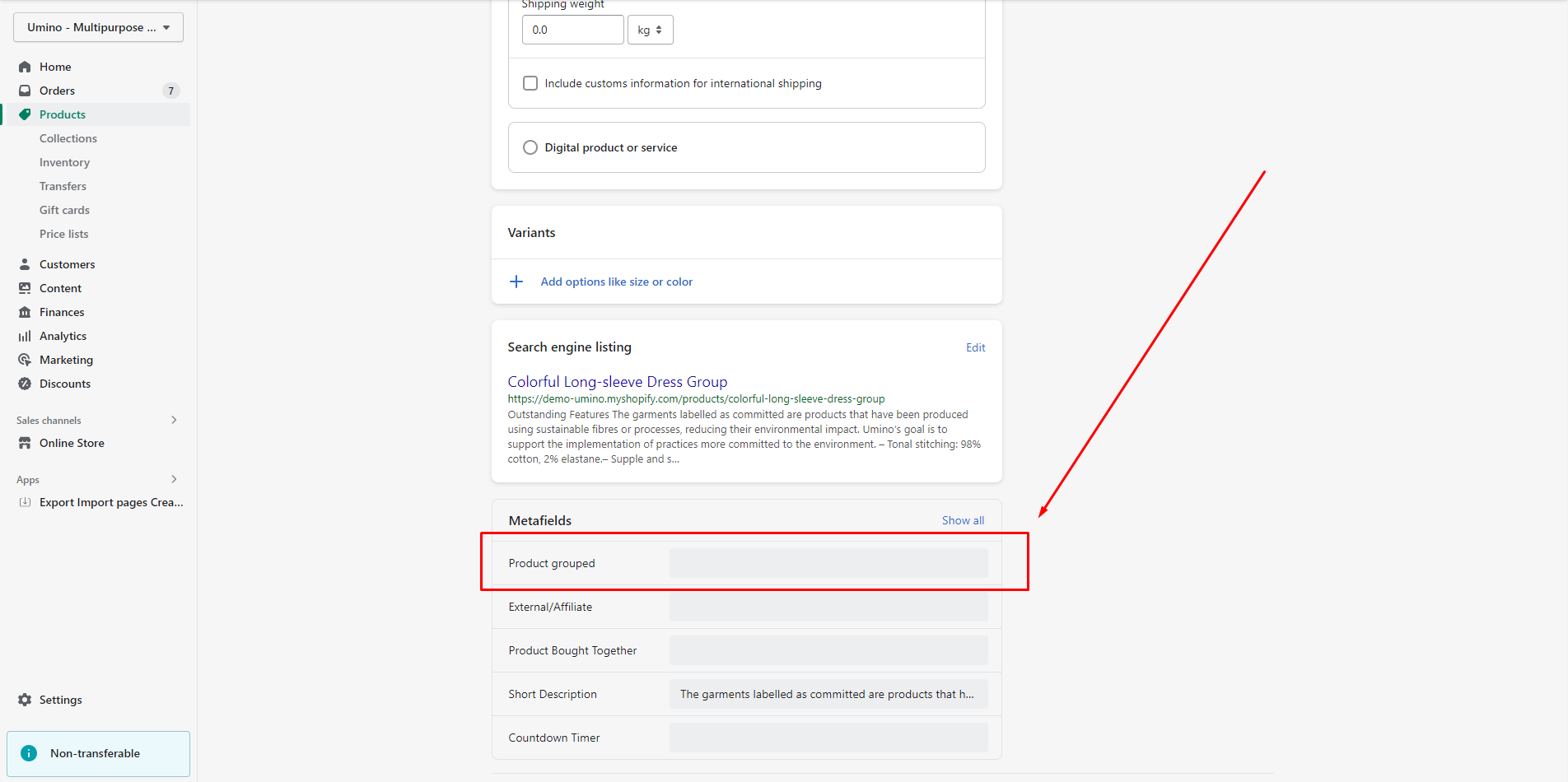
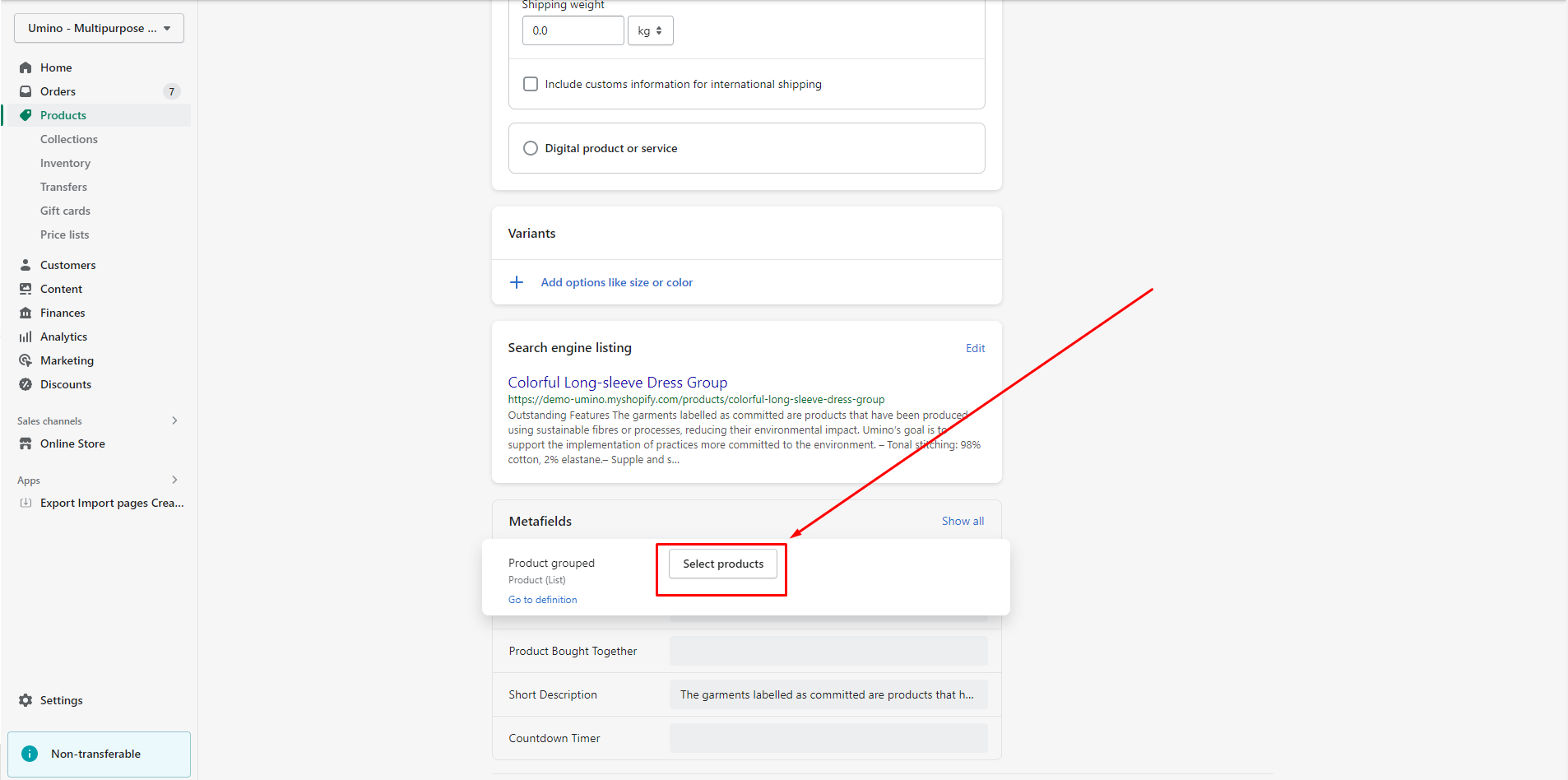
Scroll down to Metafields and click to Product grouped
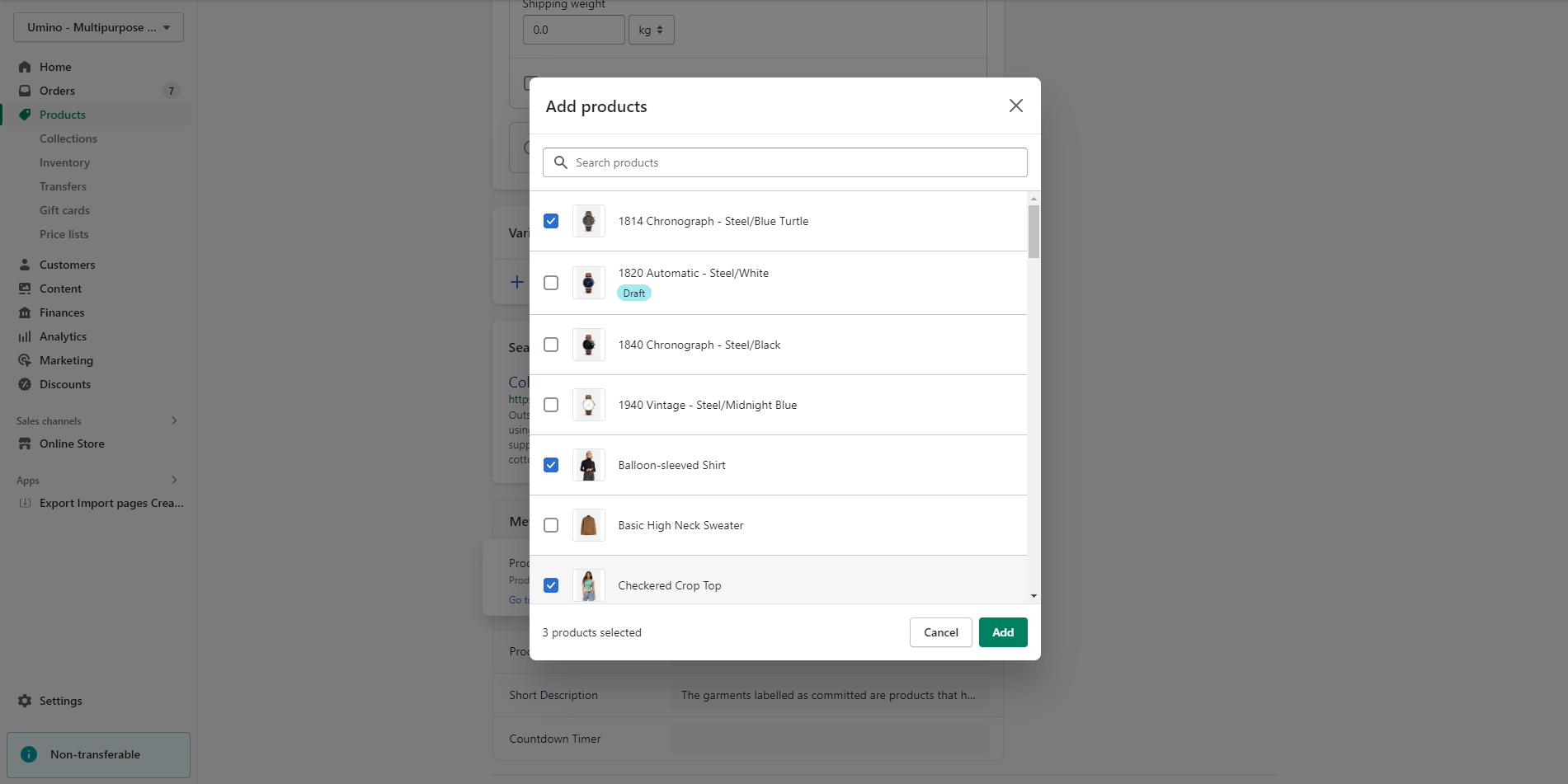
Click to Select Products and select the products you want to group
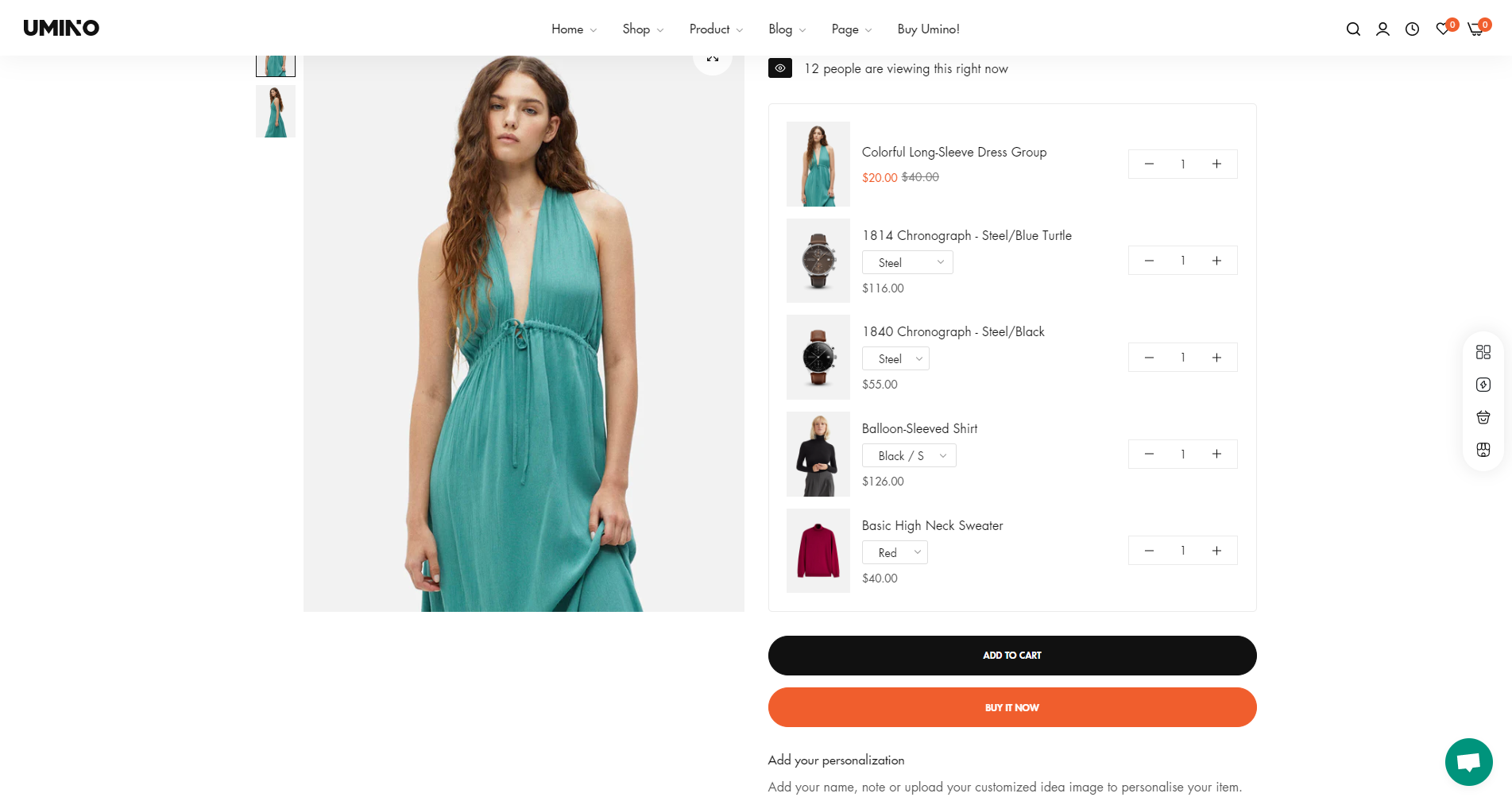
Save this change and you can see the result